Merlin help
Signing in
Everyone signs in to Merlin the same way, whether you are a customer, a supplier or on the InstaParts team. Your administrator sends you an invite email first: there is no public sign-up.
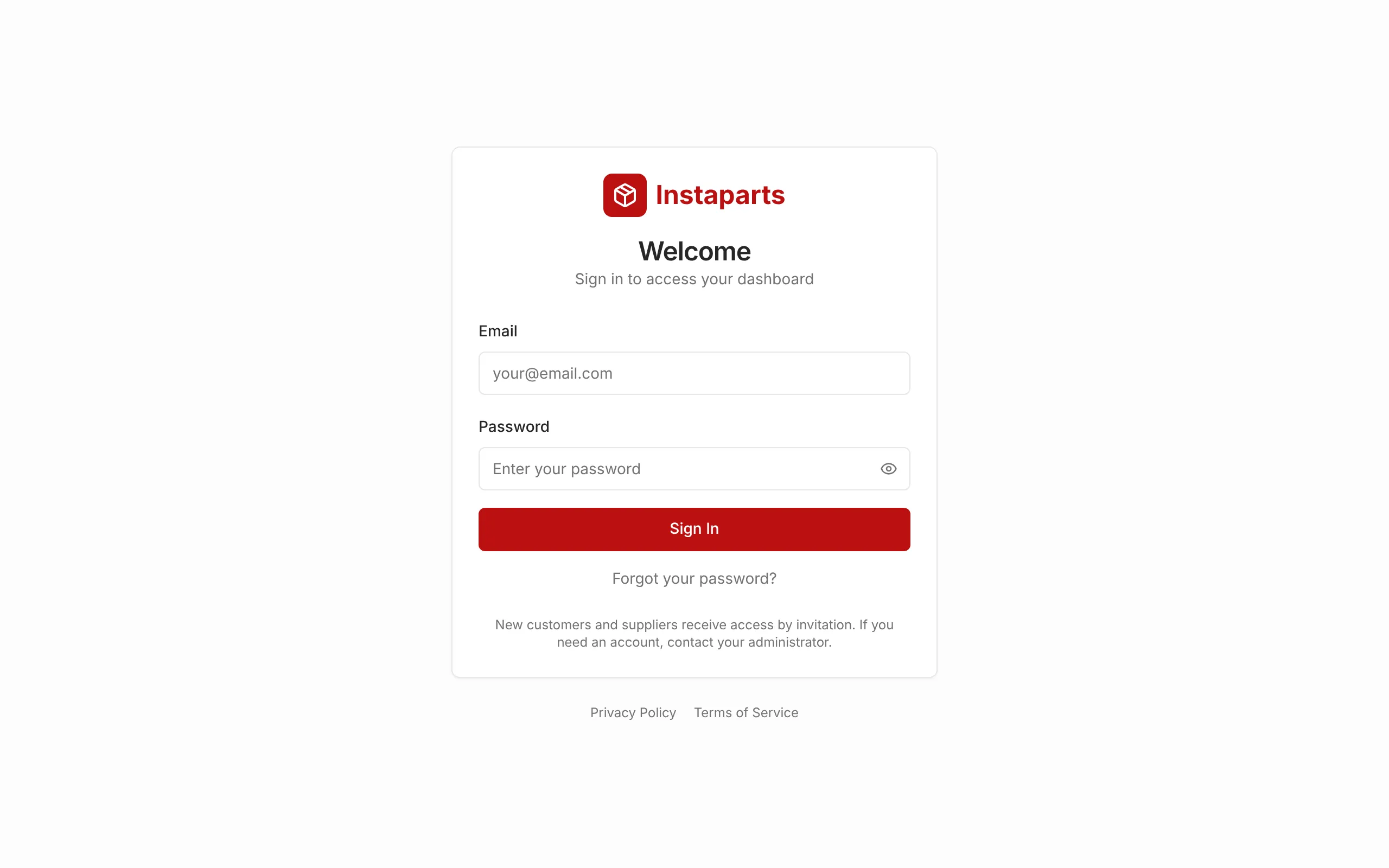
Step 1: Open Merlin and sign in with your email and password.
 Open full size (opens in a new tab)
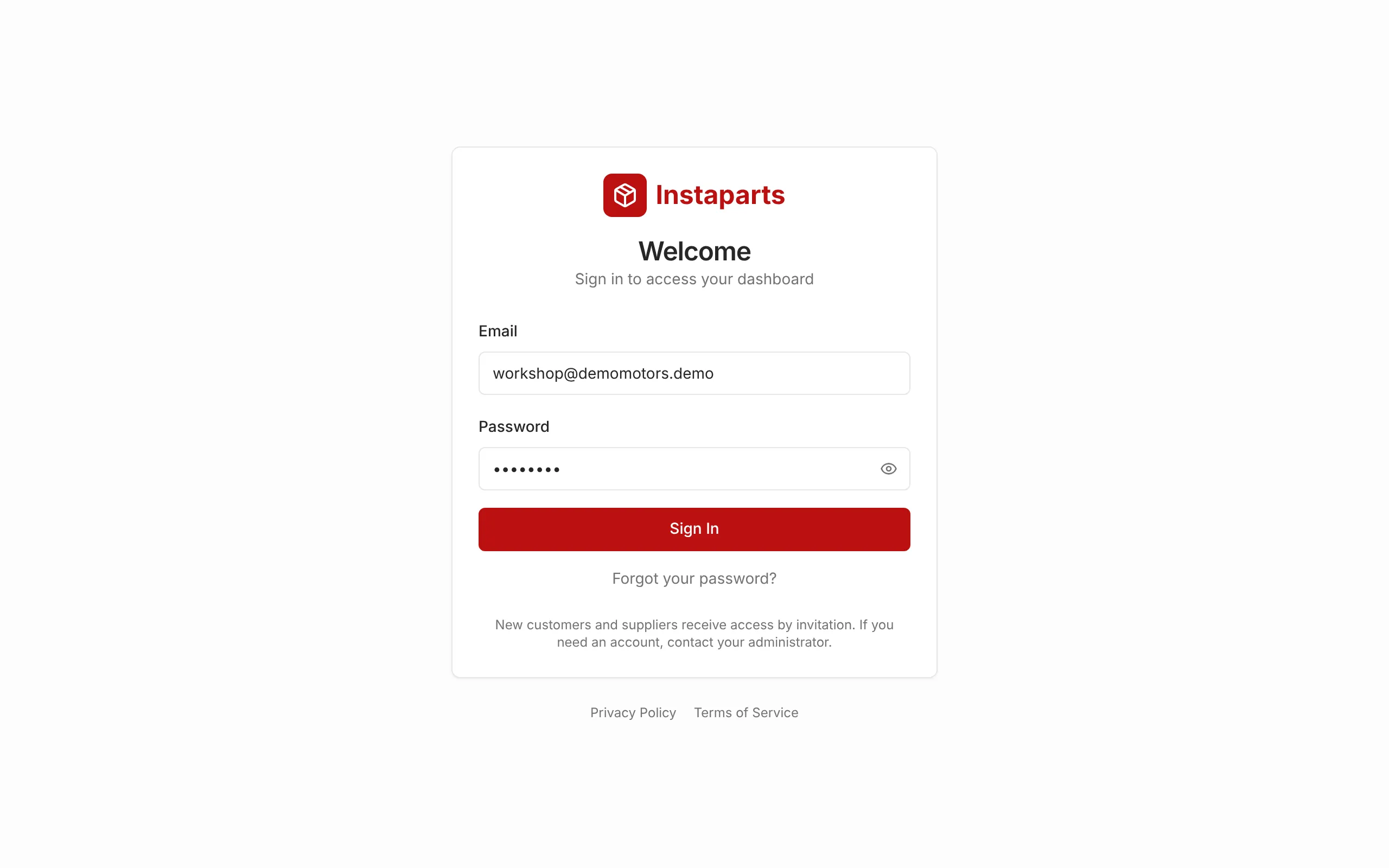
Step 2: Enter your details and click Sign In.
 Open full size (opens in a new tab)
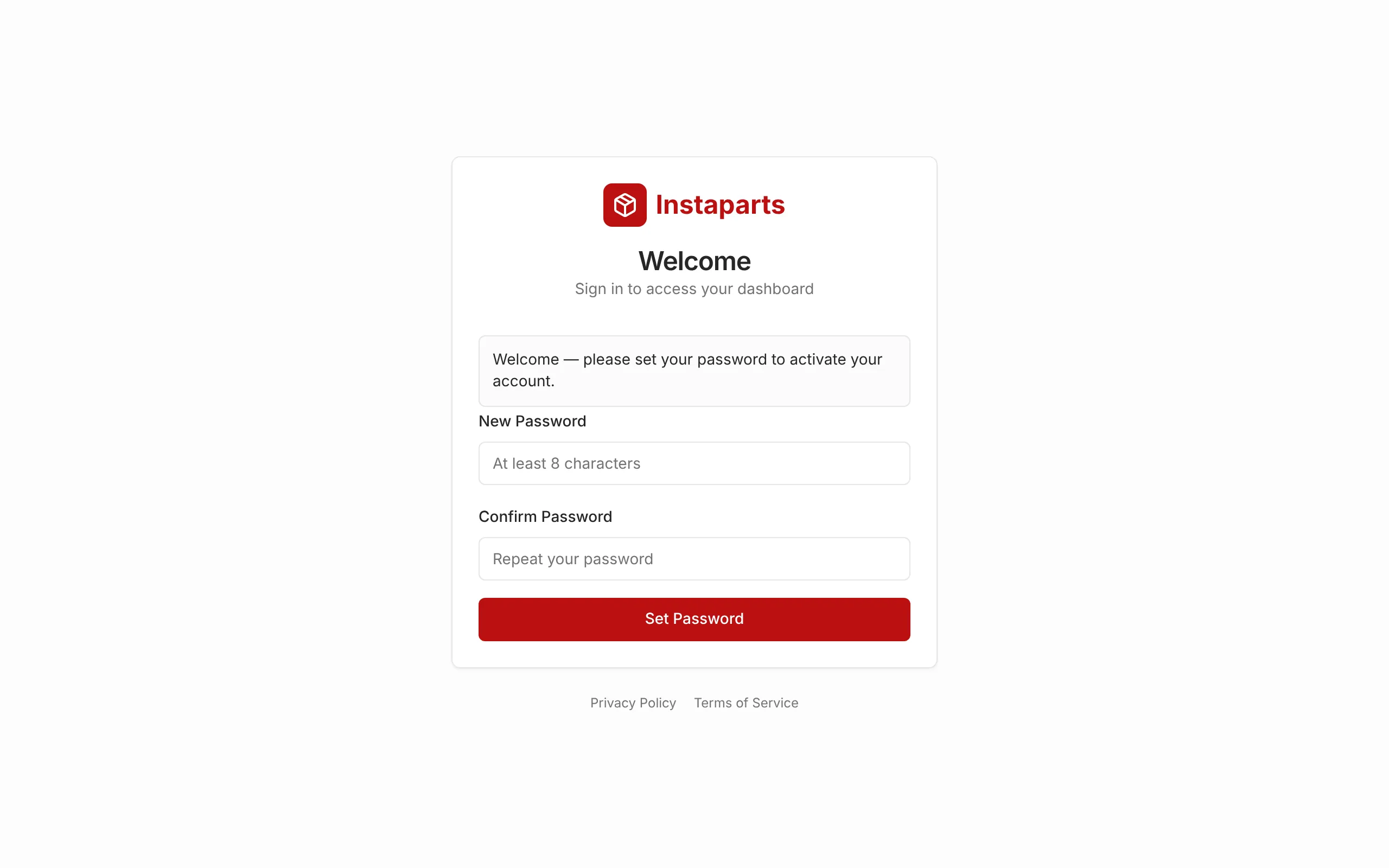
Step 3: First time? The link in your invite email opens this screen. Choose a password (at least 8 characters) and click Set Password.
 Open full size (opens in a new tab)
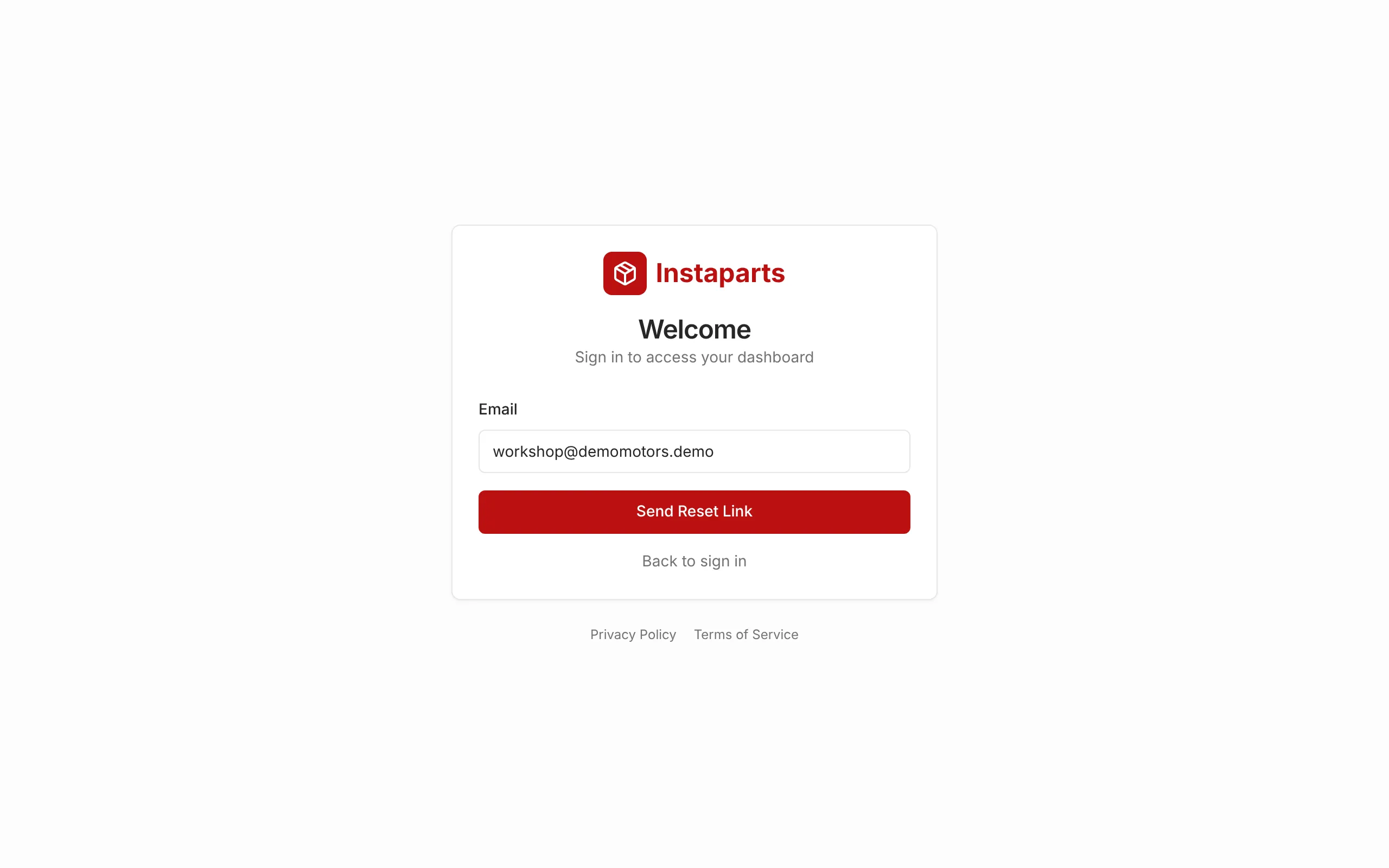
Step 4: Forgot your password? Enter your email and click Send Reset Link, then follow the link in the email.
 Open full size (opens in a new tab)
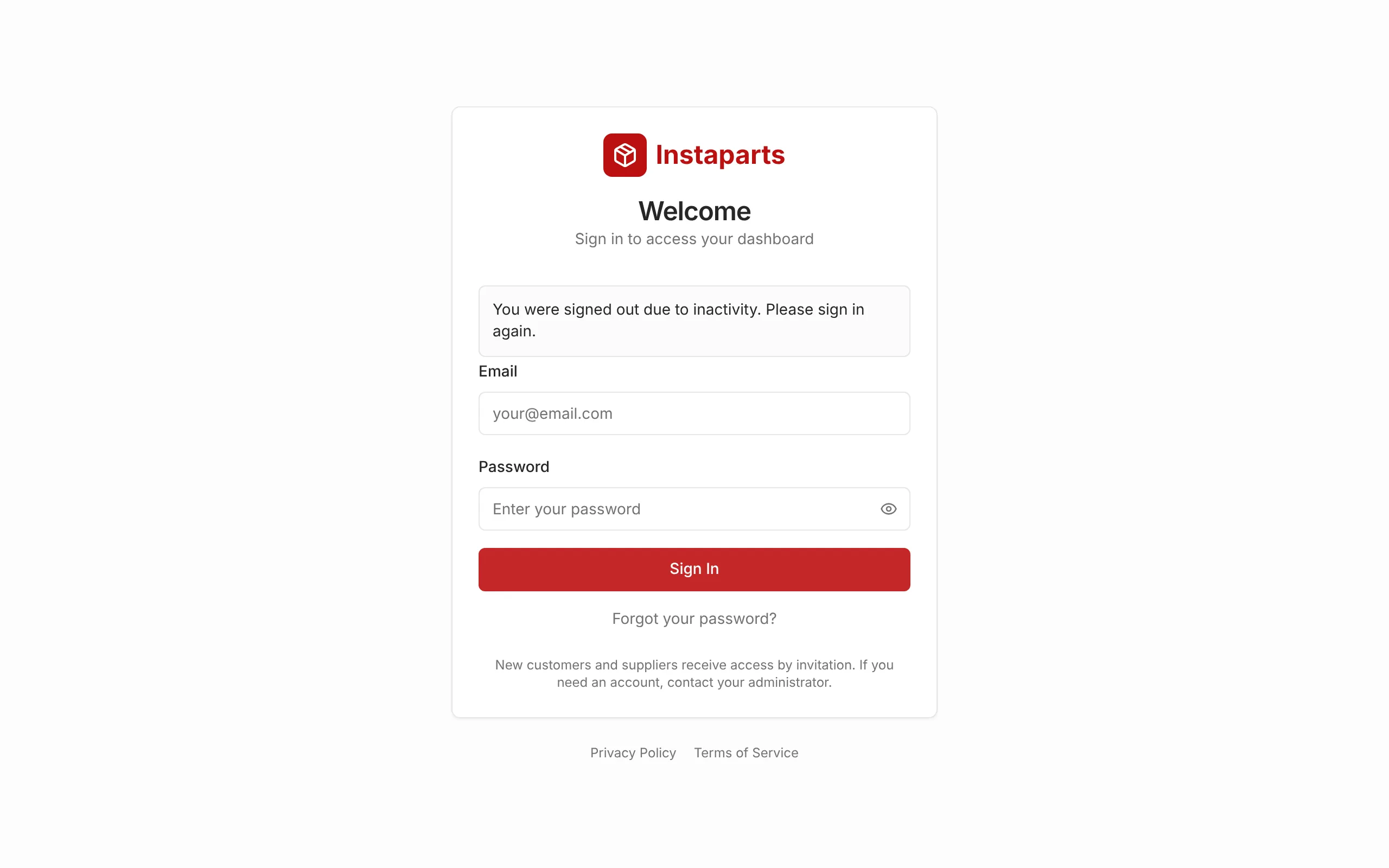
Step 5: Customer and supplier portals sign you out after 60 minutes of inactivity. Just sign in again.
 Open full size (opens in a new tab)
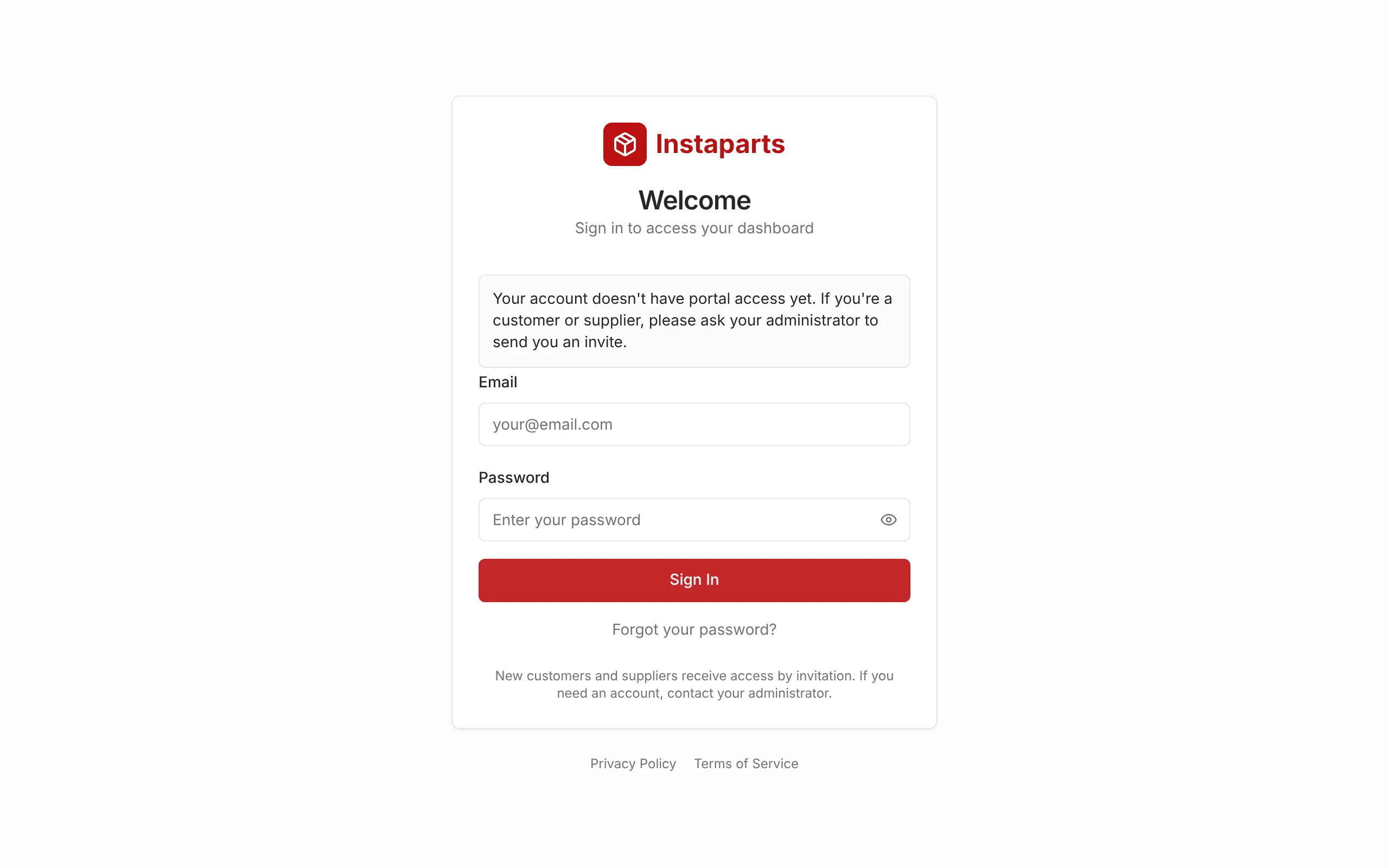
Step 6: Seeing this message? Your account isn't linked to a customer or supplier yet. Ask your administrator.
 Open full size (opens in a new tab)
Stuck?
I can't find my invite email
Check your junk or spam folder first. If it isn’t there, ask your administrator to resend the invite. There is no public sign-up, so you need an invite to get in.
I forgot my password
Click Forgot your password? on the sign-in page, enter your email and click Send Reset Link, then follow the link in the email.
You will always see “If an account exists with this email, a reset link has been sent”. That is by design, so the message doesn’t reveal which emails have accounts.
It says my account is locked
Five failed sign-in attempts within 20 minutes lock sign-in for 20 minutes. Wait it out, or reset your password: a reset also clears the lock.
It says "Your account doesn't have portal access yet"
Your account isn’t linked to a customer or supplier yet. Ask your administrator to link it. It is a one-time fix.
Still stuck? Contact your InstaParts administrator.